VG3 Software Manual
Software Update Log
Software Introduction
VisionGroup3 Vision Software Platform
Menu Bar
Quick Options Preview
Flow Tree and Global Flow Tree
Function Tree
Software Version Description
Function Addition Tree
Function Information
Image Display Area
AI Model Tree
Global Variable Tree
Camera
Coordinate System Tree
Hardware Communication Configuration
Usage and Troubleshooting of Various Communication Simulation Software
Hardware Management Device Connection Test
String Monitor Operation
Digital IO Monitor Operation
Register Monitor Operation
Image Processing
Image Acquisition and Display
Camera Image Acquisition
Camera Label Image Acquisition
Display Image
Window Clear
Read Camera Image
Video Processing
Video Reading
Video Download
Video Acquisition
Video Generation
Color Detection
Color Image Cropping
Color Selection
KNN Color Selection
Color Conversion
Block Sequence Detection
Color Blob Detection
Category Color
Image Preprocessing
Image Cropping
Image Merge
Image Ring Unfold
Image Filtering
Image Transformation
Camera Distortion Calibration
Perspective Distortion Calibration
Image Correction
Region Processing
Geometry to Region
Region Transformation
Region Screening
Region Operation
Blob Region
Region Creation
Region Generation
Simple Detection
Blob Detection
Blob Multi-Region Detection
Image Contrast
Image Brightness
Line Burr Detection
Circular Burr Detection
Pixel Difference Detection
Positioning and Measurement
Matching
Feature Matching
Optimized Feature Matching
Single Target Template Matching
Multi-Template Feature Matching
Geometric Extraction
Extract Line
Extract Circle
Extract Arc
Extract Ellipse
Edge Extraction
Extract Parallel Lines
Line Intersection
Extract Quadrilateral
Point-Line Caliper
Line-Line Caliper
Edge Distance Counting
Measurement Calibration
Farthest Nearest Point Extraction
Geometric Calculation
Custom Point
Custom Line
Custom Circle
Custom Pose
Custom Rotated Rectangle
Custom Coordinate System
Custom Rectangle Array
Line-Line Intersection
Line-Line Angle
Angle Bisector
Line-Line Distance
Point-Point Distance
Point-Line Distance
Point-Circle Distance
Point-Circle Tangent
Line-Circle Distance
Line-Circle Intersection
Circle-Circle Intersection
Position Correction
Point + Angle Correction
Two-Point Position Correction
Two-Line Position Correction
Positioning Guide
Camera Calibration
Long Radius Calibration (Auto)
Long Radius Calibration (Manual)
Camera Simple Calibration
N-Point Calibration
Calibration Transfer
Calibration Verification
Calibration Reference
Calibration Calculation
Calibration Conversion
Camera Calibration Conversion
Mapping
Mapping Reference
Mapping Conversion
Mechanical Transfer
UVW Calculation
Learn Reference Target
Single Camera Pick
Single Camera Pick (Eye-in-Hand)
Single Camera Pick and Place
Single Camera Correction
Multi-Camera Correction
Dual Camera Alignment
Mechanical Point Alignment
Multi-Camera Alignment
Mechanical Point Alignment (Weight)
Multi-Region Alignment
Identification Tools
Code Reading Tool
1D Barcode Quick Recognition
2D Barcode Quick Recognition
All Type Code Reading
Barcode Grading (AI)
Character Recognition
Matching Character Recognition
Deep Learning
Detection
Object Detection (AI)
Rotated Object Detection (AI)
Human Keypoint Detection[AI]
Segmentation
Image Segmentation AI
Classification
Image Classification[AI]
Recognition
Character Recognition[AI]
Auxiliary Tools
AI-Assisted Annotation
Auxiliary Tools
Control Statements
Flow Unit
Conditional Detection
Complex Condition Detection
Loop Detection
Break
Continue
Combo Box
Flow Delay
Jump Module
Flow Reset
Stop Software
Start Detection
Pause Software
Process Trigger
Async Flow Trigger
Recipe switching
Loop Position Filtering
System Tool
DEBUG INFO
System Time
System Info
Sequence Tools
Data Sequence
Data Sequence Calculation
Continuous state change
Continuous status confirmation
Spatial Displacement Change
Sequence Action
Mathematics and Data
Logical relationship
Arithmetic Operations
Relational Judgment
Absolute Value
Relative Value
Trigonometric Functions
Integer Bitwise Operation
Data Processing
Data Summary
Label Filters
Rotated Label Filtering
Multi-ROI Rotated Label Filtering
Data Calculation
Lua Script Tool
Variable Processing
Linear Variable Creation
Linear Variable Writing
Linear Variable Array Insertion
Linear Variable Array Deletion
Linear Variable Array Value Setting
Global Variable Reading
Global Variable Writing
Global Variable Invalidation
Global Variable Array Insertion
Global Variable Array Deletion
Global Variable Array Value Setting
Global Image Array Preview
Data Binding
Data Unbinding
Array and String
Array Insert
Array Slice
Array Remove
Array Get Value
Array and Data Concatenation
String Split/Conversion
Data to String
String to Data
String Split
String Find
String Substring
Result Analysis
Display Data
Display Array Data
Save Image
Statistical Counting
Display Result on Image
Display Results on Window
Detection Screenshot
Hardware Control
String Communication Read
String Command Control
String Communication Write
Register Communication Read
Register Communication Write
Register Command Control
Siemens DB Block Read
Siemens DB Block Write
Light Controller Control
Digital Input Read
Digital Output Read
Wait for Digital Input
Wait for Digital Output
Digital Output Write
Voice Broadcast
Motion Control
Axis Motion
Stop Axis
Wait for Axis Stop
Set Axis Parameters
Axis Enable
Multi Axis Motion
AI Trainer
AI Trainer Operation Guide
Deep Learning Labeling Principles and Details
Run Interface Edit
Enter Design Interface
Understanding Interface Composition
Object List
Main Menu
Others Design Window Property List Event Script
Widget List
Image Widget
Run Control Widget
Button Widget
Status Monitor Widget
Label Widget
Condition Label Widget
BOOL Setting Widget
Integer Setting Widget
Float Setting Widget
String Setting Widget
Dropdown Setting Control Widget
Integer Slider Widget
Float Slider Widget
Container Widget
Combo Box Widget
Tab Widget
Vertical Layout Widget
Horizontal Layout Widget
Vertical Spacer Widget
Horizontal Spacer Widget
Login Widget
Image Box Widget
Log Widget
Pie Chart Widget
Bar Line Chart Widget
Static Table Widget
Dynamic Table Widget
Circular Progress Widget
Preview Mode
Script Mode
Run Mode
Custom Logo
Software FAQ
How to Solve Global Camera Fly Shooting Smear Problem
Maximize Graphics Card Performance Settings
Method to Enable Virtual Memory
Vision Software Freeze Troubleshooting Steps
Secondary Development
VisionGroup3 CSharp Secondary Development Manual
VG3 SDK Development Guide V1.0 Cpp
VG3 Module Plugin Development
本站点使用 MrDoc 构建
-
+
首页
Quick Options Preview
## Quick Options Preview | Quick Option Name | Icon | Introduction | | --- | --- | --- | | User Login |  | Click to switch between different permission roles | | Create New Project | | Click to create a new project. After creation, the new project will be opened immediately | | Open Project |  | Click to open the file manager, find the project file you want to open, and open the project immediately | | Save Project |  | Click to save all modifications to the current project, shortcut Ctrl+s | | Save Project As |  | Click to save the current project as a project package and put it in the specified location. | | [Recipe Management](#h2-Recipe-Management) |  | Click to see all recipes under the current project, and manage their addition, deletion, modification and switching. | | Recipe Switch |  | Quick recipe switching entry. | | Run | | Click to run all flows of the current recipe, including global flows. However, the running mode of each flow will vary according to the trigger mode of the flow. After clicking Run, the icon will change to , that is, clicking it again can stop the flow running. However, this stop will only stop the flows in the flow tree, and the global flows in the global flow tree are still running. For example: <br/> **Wait for Trigger:** When the trigger mode of the flow is Wait for Trigger, it needs to wait for a trigger signal to trigger the flow running during the running process. <br/> **Continuous Run:** This trigger mode means that once the project runs, the flow starts to run automatically and runs continuously. | | Emergency Stop | | Click to stop all flows under this recipe, including all running flows in the flow tree and global flow tree. | | Continue | | When the Pause Software module is used in the flow, you need to manually click this button to continue running the flow. 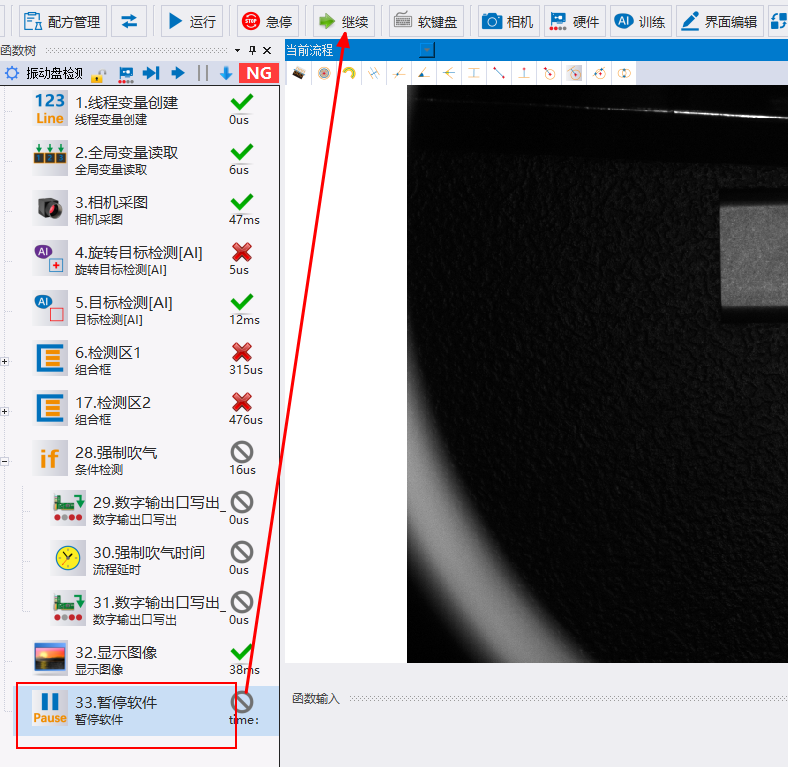 | | Soft Keyboard | | Click to turn on or off the soft keyboard. In the vision industry, users are often just an all-in-one machine, similar to a tablet computer, without a keyboard. The soft keyboard function can facilitate users to operate and edit parameters. | | [Camera](#h2-Camera) | | Click to open the camera management interface, where there are two types of connection management: industrial camera and video camera. For details, please see the camera section below. | | [Hardware](#h2-Hardware) | | Click to open hardware management, including communication port, light source controller, IO board card and motion controller. | | [AI Training](/doc/575) | | Click to open the exclusive management interface of AI trainer, consisting of three parts: dataset, annotation and training. | | [Run Interface Edit](/doc/579) | | Click to open the exclusive editing area of the running interface, providing customers with editing their own product tool running interface to enhance brand image and professionalism. | | Run Mode | | Click to open the running interface edited by the customer, not the VG3 editing interface. For those who have not edited the running interface, clicking this button will prompt you to design first. | | Show or Hide Shortcut Items | | Click to set custom shortcut items. Users can set commonly used shortcut entries according to their own usage scenarios. 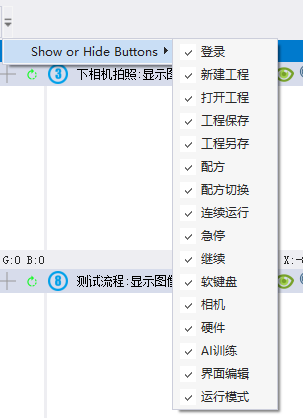 | ## Recipe Management 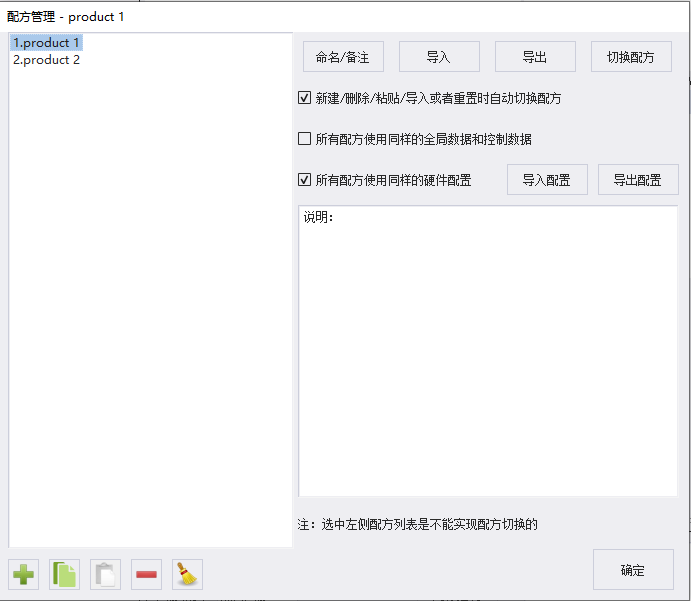 * Recipe List 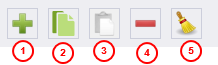 * ① Add Recipe * ② Copy Recipe * ③ Paste Recipe * ④ Delete Recipe * ⑤ Reset Recipe * Selecting any recipe allows the following operations: * Rename or remark recipe * Import recipe * Export recipe * Other operations * Automatically switch recipe when creating/deleting/pasting/importing or resetting * If checked, it will automatically switch to the latest recipe when creating/pasting/importing recipe * When deleting a recipe, it will automatically switch to the first recipe * When resetting a recipe, it will automatically switch to ?? * All recipes use the same global data and control data * If checked, only one set of global variables and control data is needed to be shared by all recipes * Conversely, after switching recipes, the global data and control data connections become invalid and need to be set separately for each recipe. * The control data here refers to the data of [Hardware](#h2-Hardware) and [Register Monitor Operation](/doc/597) * All recipes use the same hardware configuration * If checked, all recipes share a set of hardware configurations. Hardware configuration refers to all settings of [Hardware](#h2-Hardware). * Conversely, each recipe needs to be configured once * Import Configuration: Supports importing hardware configuration of other recipes * Export Configuration: Supports exporting hardware configuration of the selected recipe * Switch Recipe ## Camera 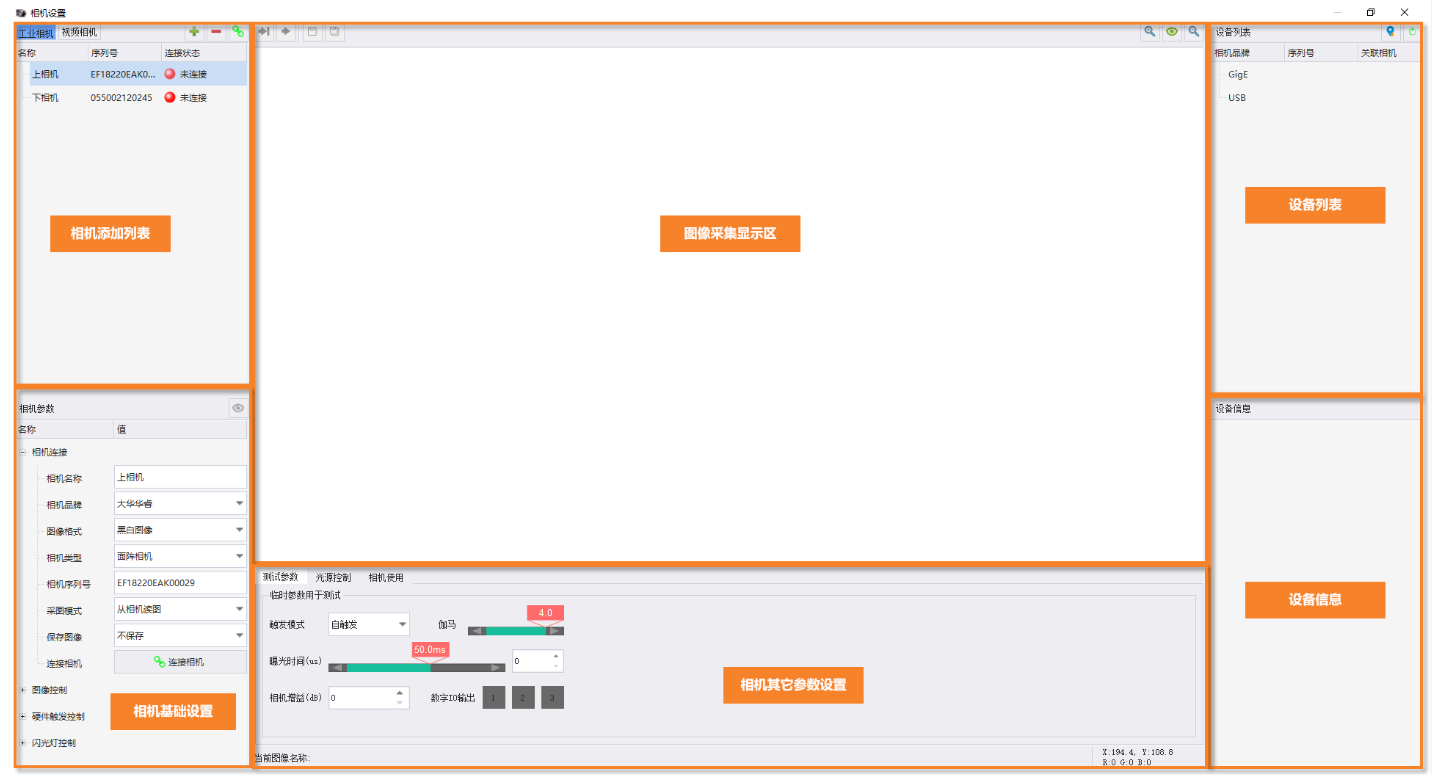 For more detailed introduction, please see [Camera](/doc/604) ## Hardware 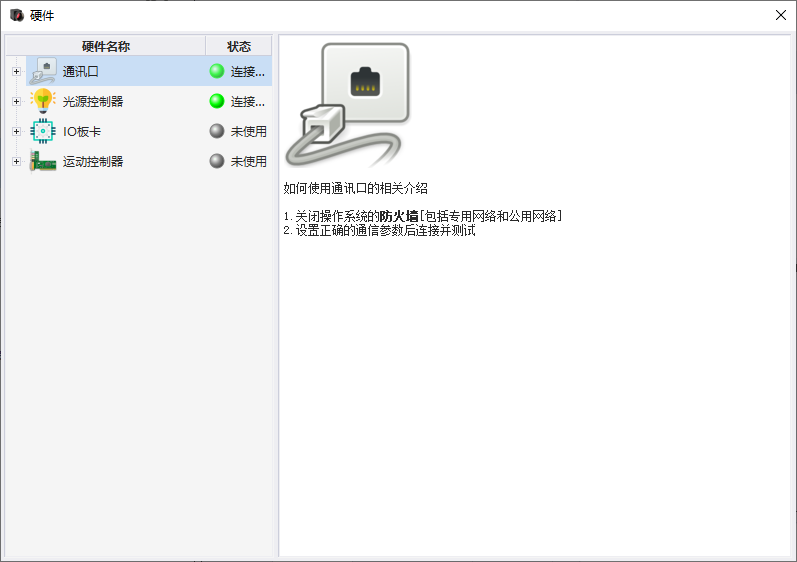 For more detailed introduction, please see [Device Connection and Testing in Hardware Management Interface Connection Test](/doc/583) --- Click here to jump to the corresponding Chinese manual page: [Quick Options Preview](/doc/295)
唐红
2026年3月13日 08:28
转发文档
收藏文档
上一篇
下一篇
手机扫码
复制链接
手机扫一扫转发分享
复制链接
Markdown文件
PDF文档(打印)
分享
链接
类型
密码
更新密码